Tools for School - Zotero



I don't know about you, but sometimes I think back to the dark ages of college and shudder. The college I went to wasn't exactly quick to adopt technologies. We used to have to run a phone line out into the hall to get dial-up internet because we neither had internet or phones in our rooms. Far worse than that though was having to use the notecard system for research papers. Do you remember the notecards? Where you would write down all of your notes on notecards with a source note on the back. Then, you had to keep a separate stack of notecards to keep track of your sources. When it came time to write your paper, you then needed to properly cite all of your sources. Dark ages indeed!
Hopefully, if you are a student, or one who writes in a style that requires source citations, you have heard about resource management programs. If not, prepare to have your life changed. There are two resource management programs that I use. The first is a paid program that integrates very nicely with Scrivener, which is the software I use when writing longer papers with multiple sections. The second program I use is free, and it's called Zotero.
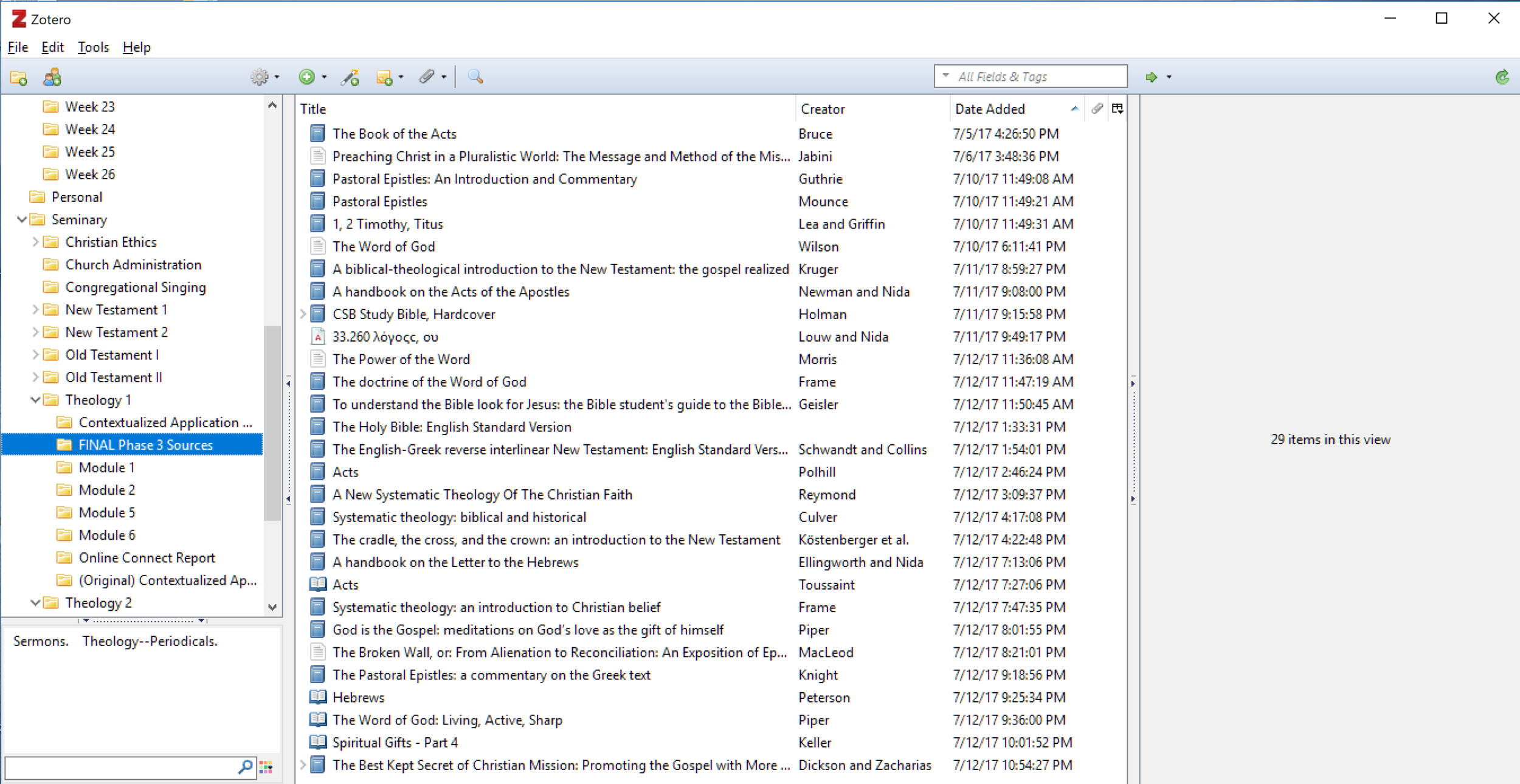
Right off the bat, I want to you notice a couple of things. On the left side of the program, you can see that I have a bunch of folders for the different classes I have taken. In each of those folders, there are typically sub-folders, and sometimes sub-folders under those. In the middle are all of the sources in that particular folder. If I click on one of the sources, the right pane looks like this:
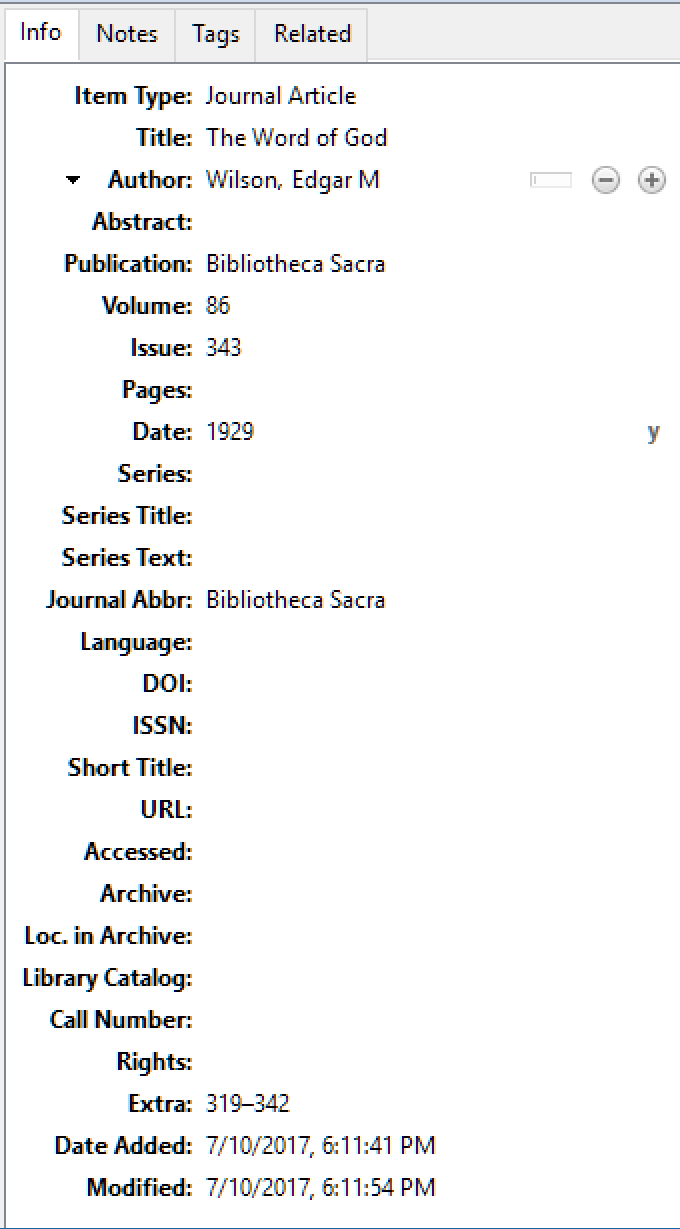
All of this information is of course editable. You can change what kind of source it is, fill in author information, etc.. How does one get books into Zotero? There are a couple of ways. You can create a source and fill in the information manually, but there's a better way. There is a Zotero plugin for Chrome and Firefox that will pull bibliographic information from the page you're on into the folder currently selected in the app. So, if you pull the book up on Amazon and click the Zotero extension, it will automatically pull the bibliographic information for that book into Zotero. If you are using Ebsco, it will not only pull in the information for an article, but if it is a source that has full text on Ebsco, Zotero will also download and attach a PDF of that article to the source. If you're just citing a webpage, it will also take a snapshot of that webpage and save it to the source.
Finally, if you drag a PDF into Zotero, you can right click on the file and "Retrieve Metadata for PDF," and Zotero will automatically pull out the bibliographic information for that source. Now comes the cool part. So, you're writing your paper in Word and you come to a part you need to cite. You simply click the Zotero tab in Word, click "Add/Edit Citation," find your source, enter the page number (if applicable) and click okay.
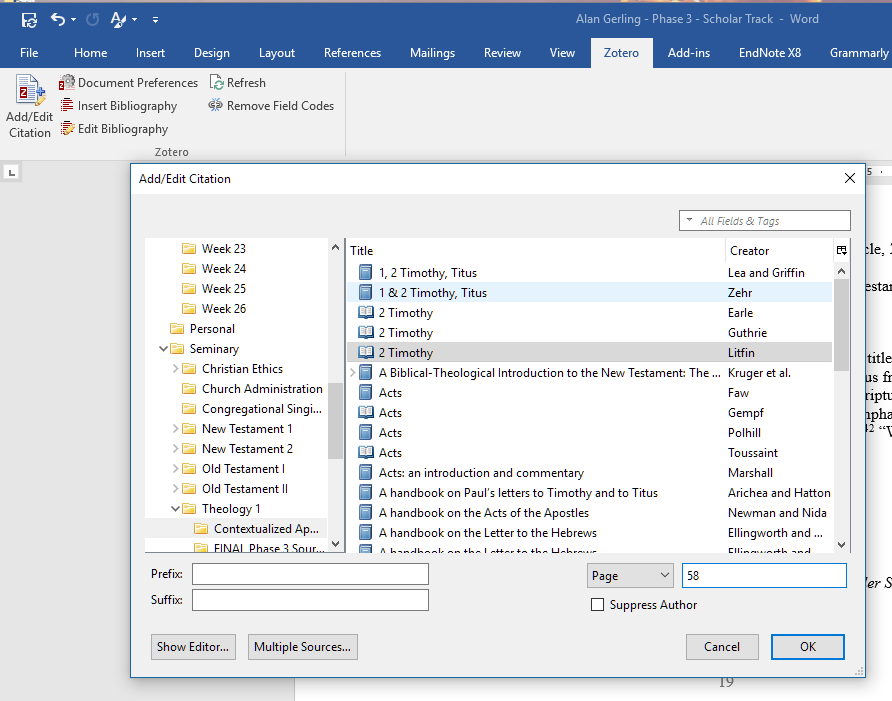
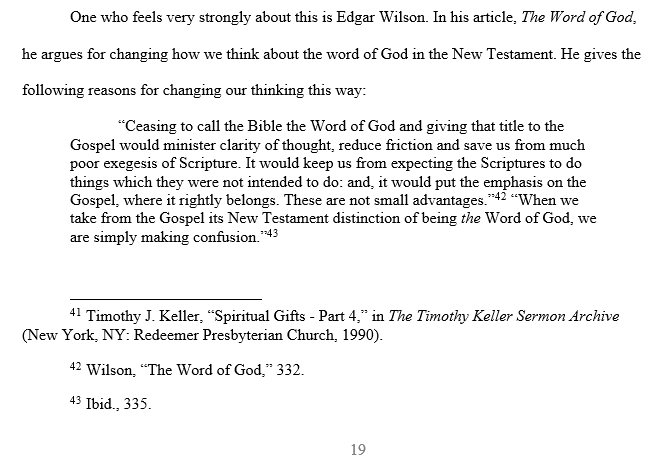
The first time you cite a source, it will ask you what style it should use. For seminary, we are required to cite sources in Turabian, so Zotero will automatically create a footnote and produce citations in properly formatted Turabian style. Since it is dynamically pulling the information from my Zotero database, if I see a mistake in the source information and update the information in the application, if I click refresh, it will update the corresponding citations. Also, it will keep track of where the full citation should be used, the short citation and any time an "Ibid" is needed. Of course, if you make changes to your paper, either removing earlier long-form citations or adding in an earlier instance of that source, the later citations will update appropriately.
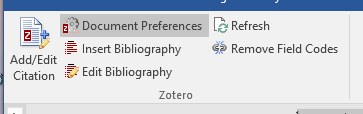
Finally, when you have finished writing your paper, you click the "Insert Bibliography" button under the Zotero tab.
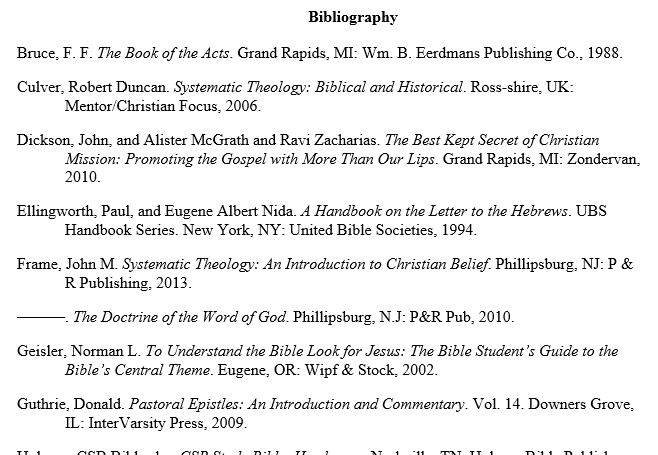
Zotero will then automatically generate a properly formatted Bibliography from the sources that you have cited in your paper. In this case, since Turabian has a separate citation format for footnotes than for the Bibliography, you have saved yourself the headache of having to reformat all of your citations into the Bibliography style.
Of course, if you make any changes when you're cleaning up your draft, after you refresh the Zotero tab, the Bibliography will update accordingly!
So, there you have it, modern technology at its best. There are other options like Mandalay and EndNote, but for the functionality and the price, Zotero really can't be beat. If you want to learn more, I'd recommend visiting Zotero's website, http://www.zotero.com, downloading the program and giving it a try. If you get stuck, I'm sure there are YouTube videos walking through the various functions of the program (this is just scratching the surface), or down at the very bottom of this page, you can contact me and pepper me with questions. I'd be happy to help in any way I can!