My Research Paper Workflow




After a couple of fairly intense seminary classes, I’ve decided I need a break for a little bit! My last two classes were Church History 1 and 2, which involved a research paper due at the end of every week. Sixteen weeks later, I feel like my process for doing research and writing papers has really honed in on a consistent system, and so I thought I’d share my workflow with you. I primarily use three apps for research/writing: Scrivener (Paid), Zotero (Free), and LibreOffice (Free). As you can see, Scrivener is a paid app which is $38 for students/teachers and $45 for non-academic users. In theory, you can get close to the same workflow using free Google Keep and a word processor, but the advantages to using Scrivener should become obvious.
Research
There are a couple parts to researching. I primarily use sources from a couple places. I have a fairly extensive Logos library, including the Theological Journal Bundle. I also have lots of resources in my Kindle library. Beyond that, obviously, a library is a great place to find resources, and if you are dealing with historical figures, often you are able to download resources from Project Gutenberg, which I typically then upload to Google Books. As you gather resources, load them into a Zotero collection. I organize my folders by week, but you could easily find yourself having folders for one specific paper, or even if you were writing a dissertation, perhaps folders for sub-topics. Here is an example of my resources for the final Church History 2 week:
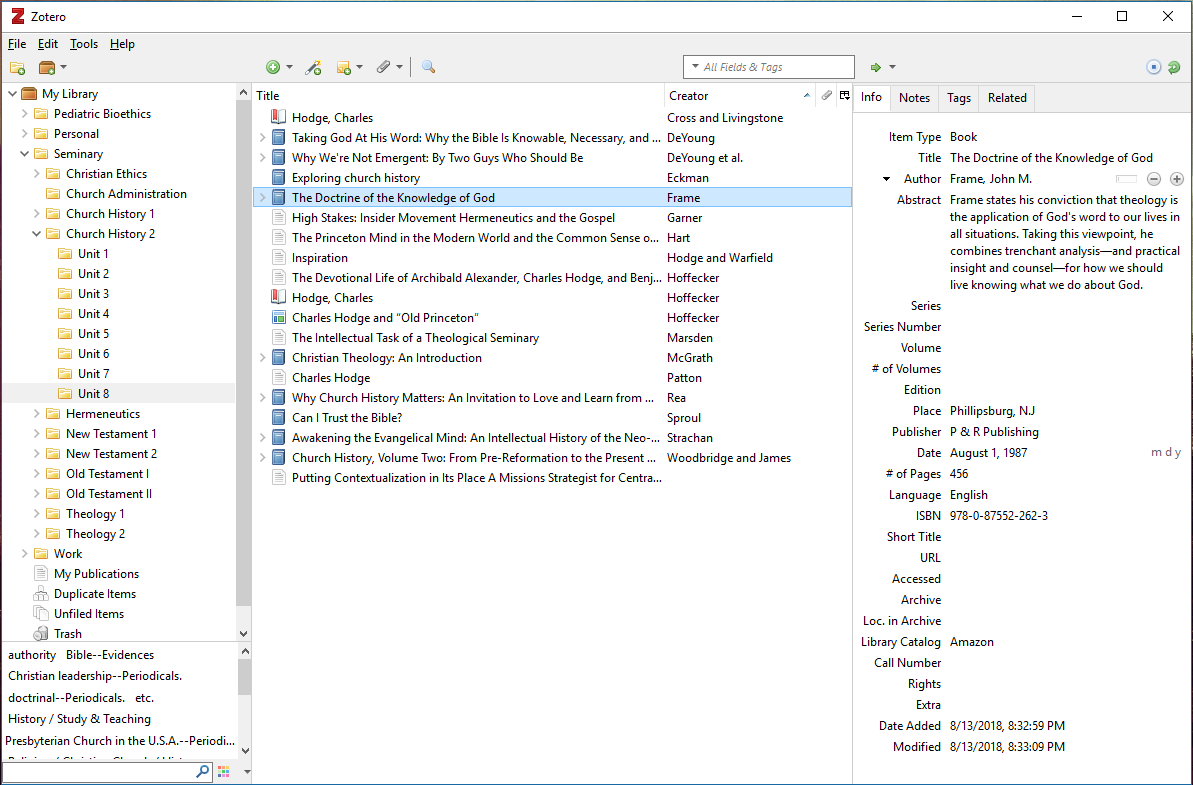
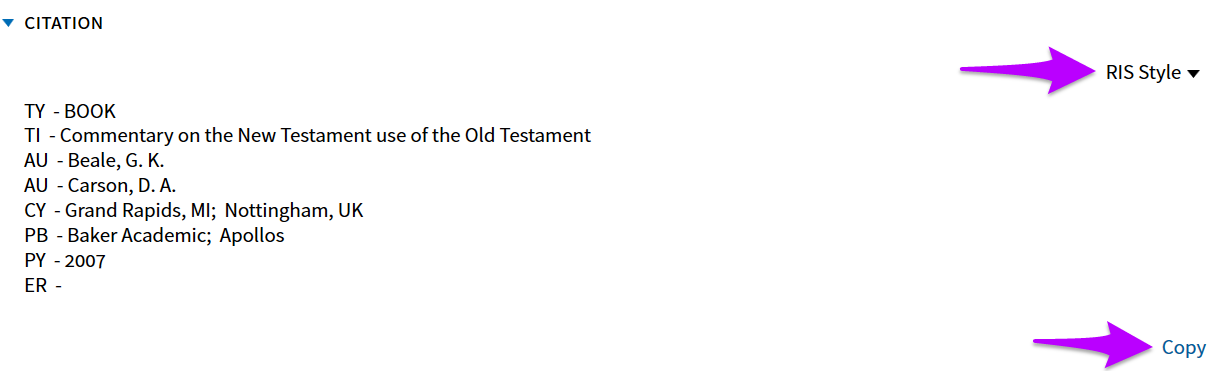
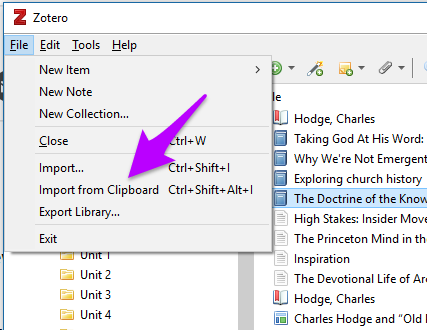
One thing that is super important to do is to make sure that if you have imported the book information from Amazon or Logos, to check to make sure that all of the pertinent fields are filled out correctly. Amazon has a bad habit of putting the longer abbreviation for states in, so you often will need to go back and abbreviate the state correctly. If you are in Logos, you can click the “I” in the upper right corner of a resource, which will take you to the resource information. Once there, if you set the Citation Style to “RIS Style” and then click “Copy,” you can then import the resource into Zotero by clicking “Import from Clipboard:
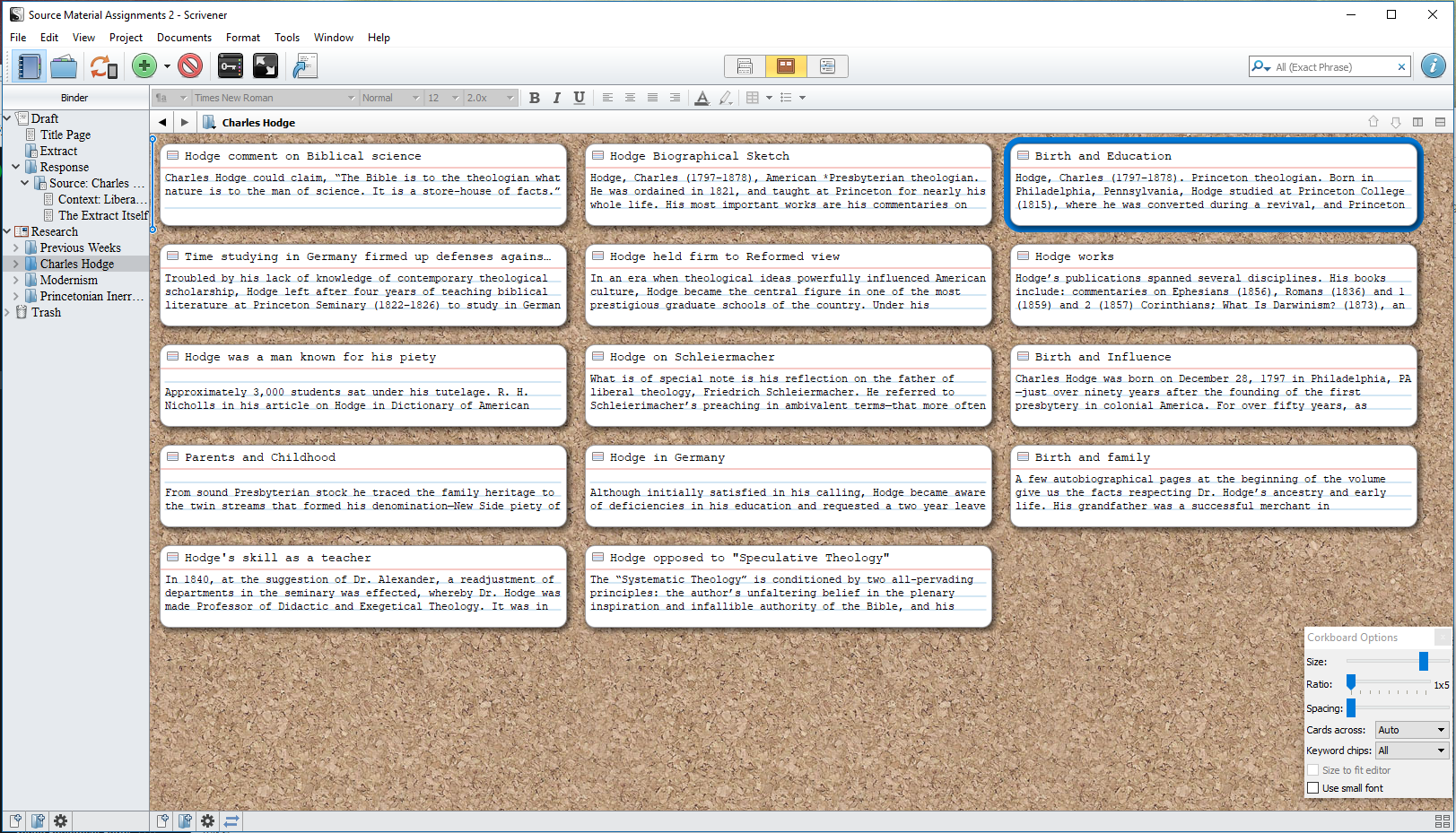
Once I’ve found my resources and begin to process the material, I use Scrivener to bring it all together. Here is a screenshot of my using Scrivener for research, and then I’ll explain what you see:
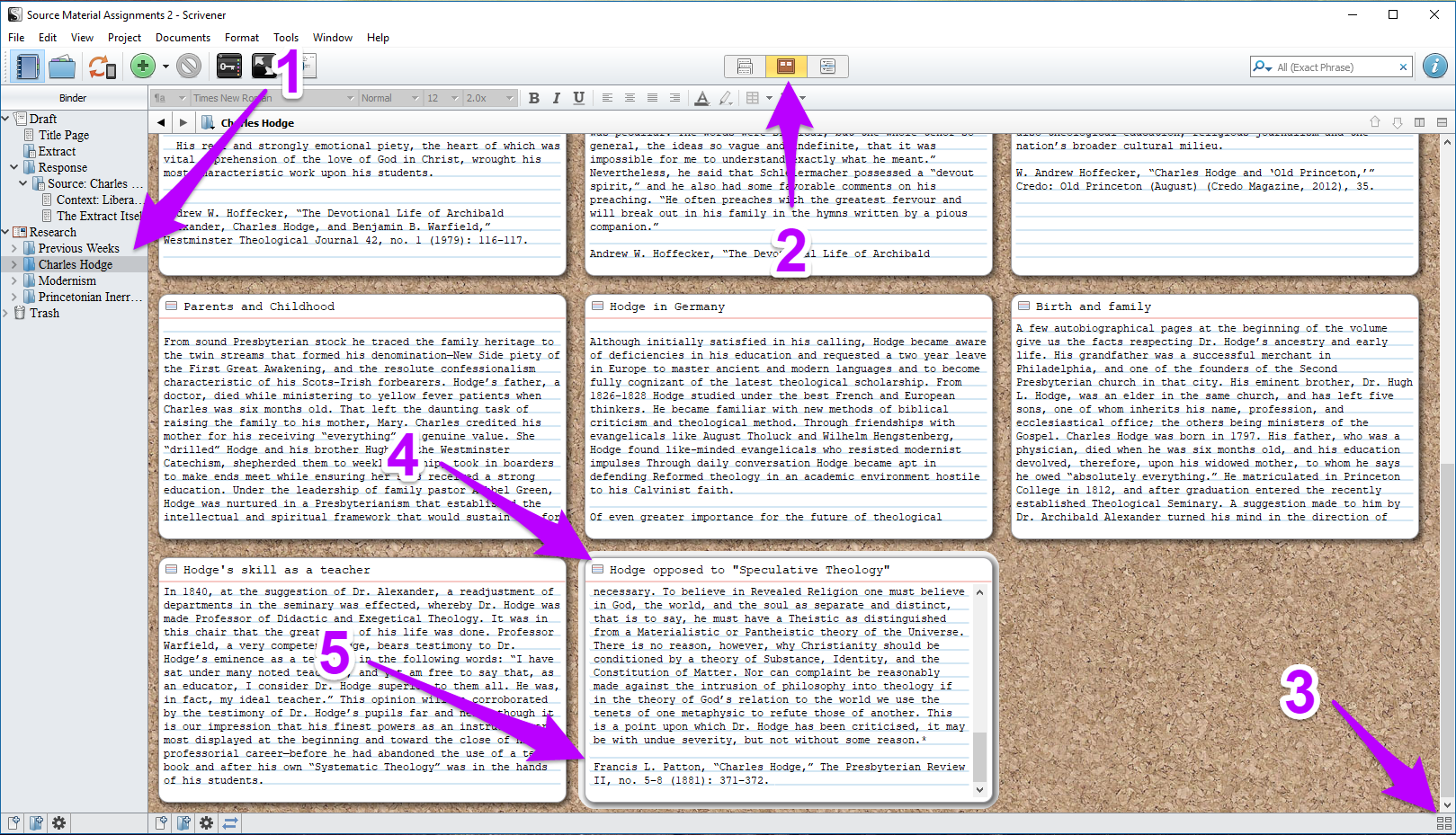
- In Scrivener, there are two sections. The first on the list there is the draft. Everything under that list are sections to my paper. Whether the section is a folder or a "document" and what level it is in the outline will determine formatting later. The Research section is laid out much the same way, except nothing in this section will be included in your paper when you compile it. You can see under research that I've created several folders for each topic that I'm gathering research. The topics correspond to sections of my paper.
- I've got the "Corkboard" mode selected for my research work.
- You can click this icon to format your notecards (size, dimensions, etc.).
- In the settings, you can set it so that when you double click, it creates a new notecard. Or, at the bottom of the screen, there's a button you can click. I give each notecard a unique summary title. This becomes important later in my process.
- After I paste or type in information, I make sure that there is enough info at the bottom to properly cite the source. If you're copying from Kindle or Logos, you can set it so that when you paste information, it automatically will include the citation after the copied material. Some ebooks don't have page numbers with them, so be sure to make note so that you can put in a Chapter number or other identifying information in your final paper.
Once all of my research is pretty well finished, I click the format button and shrink everything down so that I can sort the notecards (by clicking and dragging).
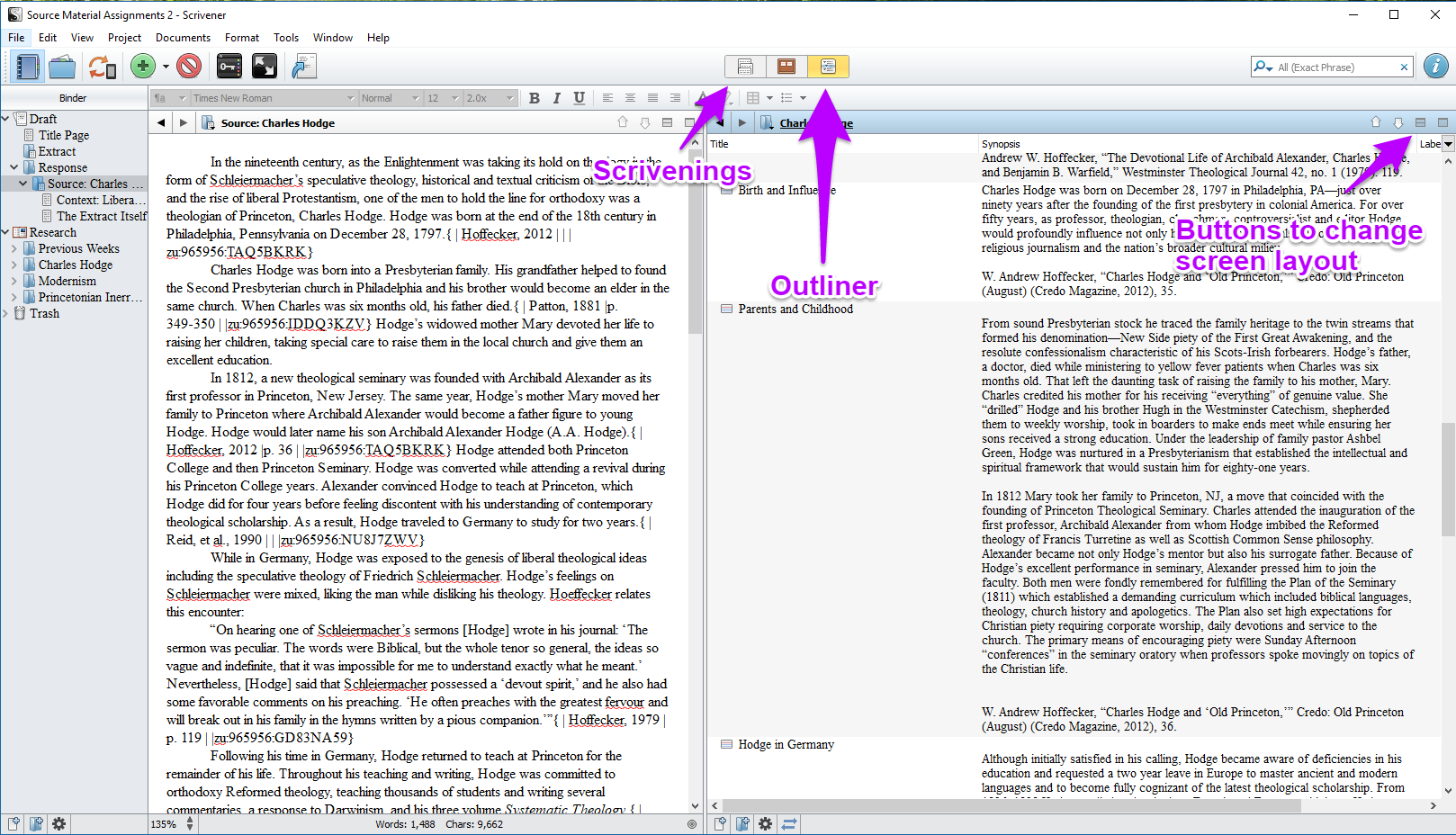
Then, I click the "pane" management button for a side/by/side view. For each screen, you can select what section is active. On the left, I select the document I'm writing, and on the right, I select the research folder. On the left, I click the "Scrivenings" view and on the right, I click the "Outliner" view. On the right side, now, I have all of my research laid out in the order I put it, with the citation information easily accessible. So I start writing!
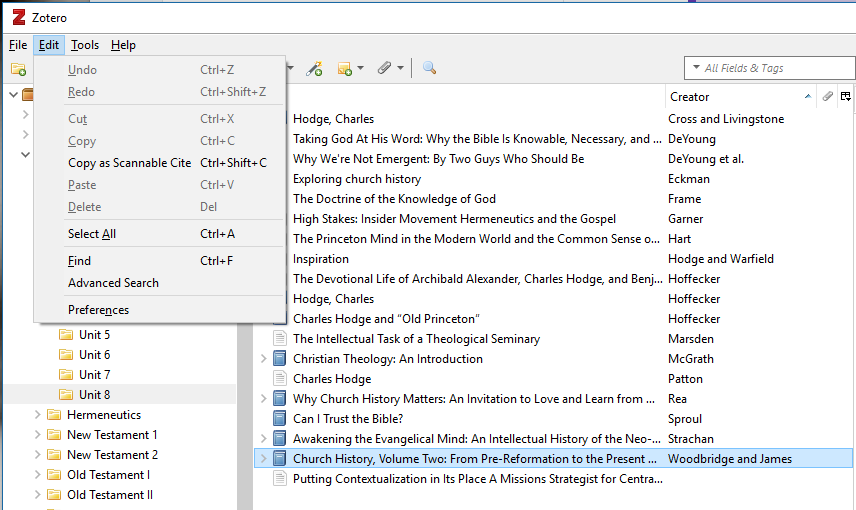
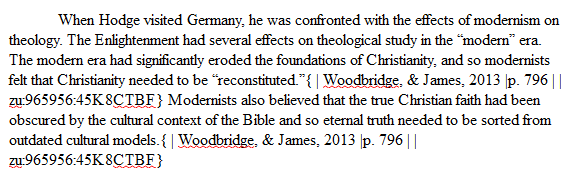
As I write, I use Zotero to insert citations and then type in the pertinent page number. To do this, you need to install the Scannable Cite plugin for Zotero, then click the source you want to use, "Edit," "Copy as Scannable Cite." Then paste that into your paper where you want the citation. Type the page number in after the first "|" marking. You can also make notes before the first "|" if you would like to. At this point, it doesn't matter at all what citation style your paper will use in the end.
"Publishing" your paper
Once you've got your paper written, you click "File," then "Compile" in Scrivener.
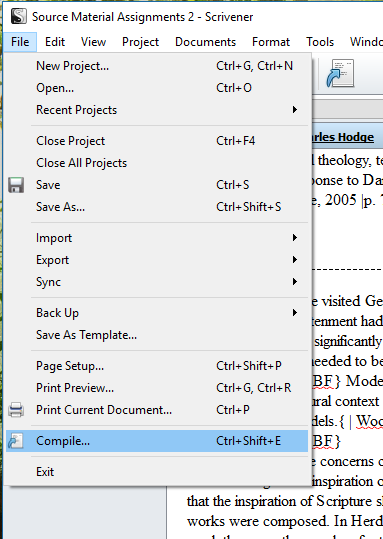
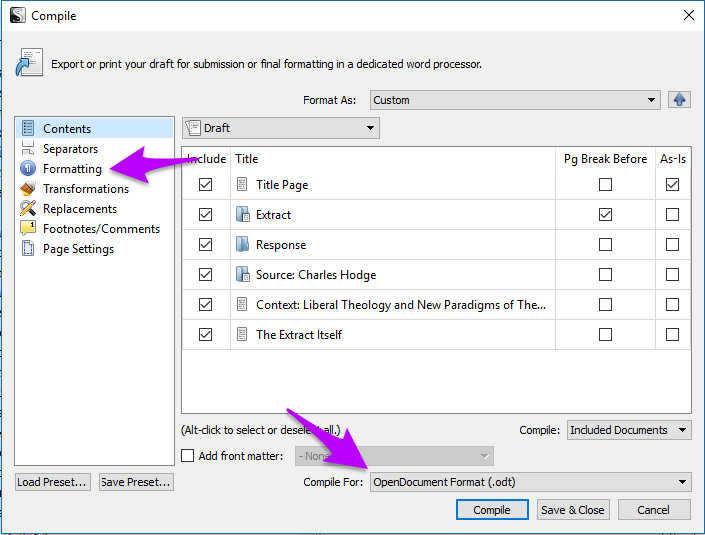
Once there, you can tell the program what you want included, as well as determine formatting for each "level" of your paper. This doesn't need to be perfect, as you will likely need to do formatting work in LibreOffice when you're done. Once you've got this close, you'll want to compile for "OpenDocument Format" and click the "Compile" Button. After you've done that, go into Zotero, and under "Tools," click "RTF/ODF Scan"
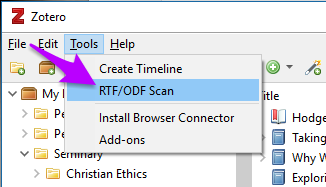
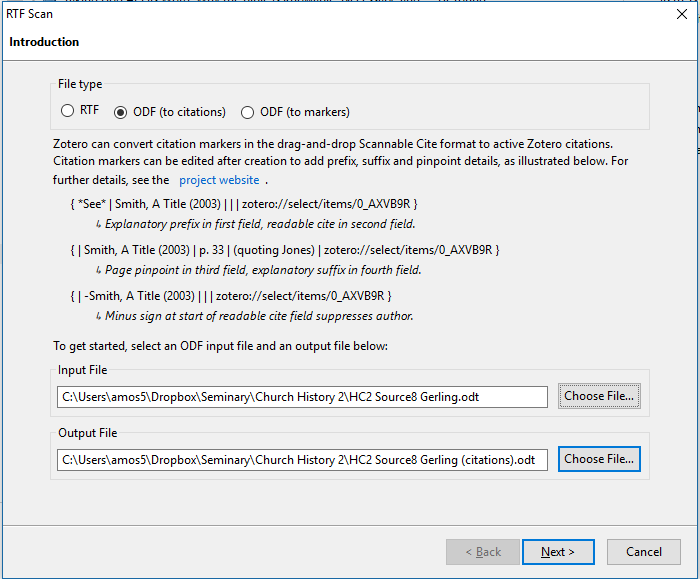
Make sure "ODF (to citations) is selected" and find the file you compiled. Choose what you would like the file with properly formatted citations to be called and click "Next" then "Finish."
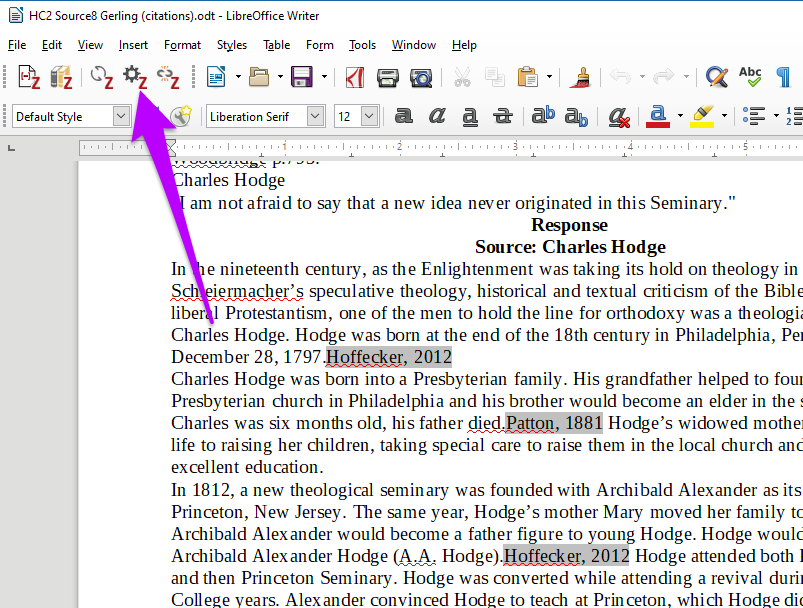
Open up your new file and see that there are gray markers where you had put in citations. Up on the toolbar, you should see the Zotero tools. Click on the settings button and choose what citation style you would like to use and click okay.
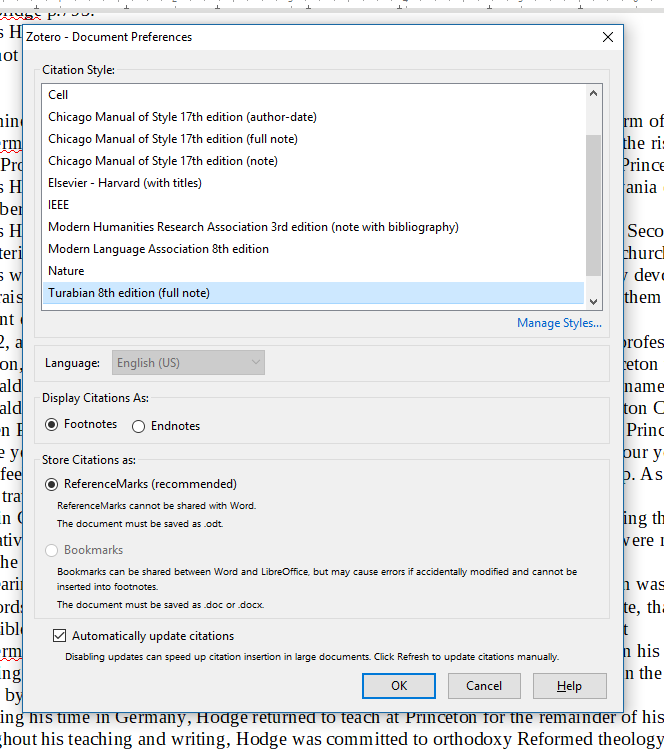
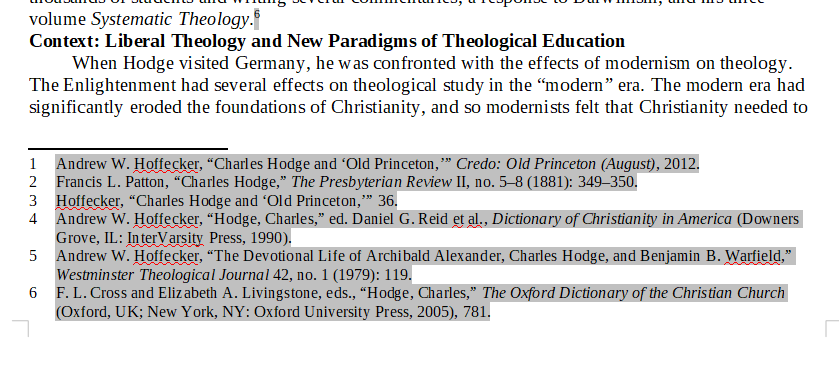
Stare and your paper, and remember that people used to do this by hand....
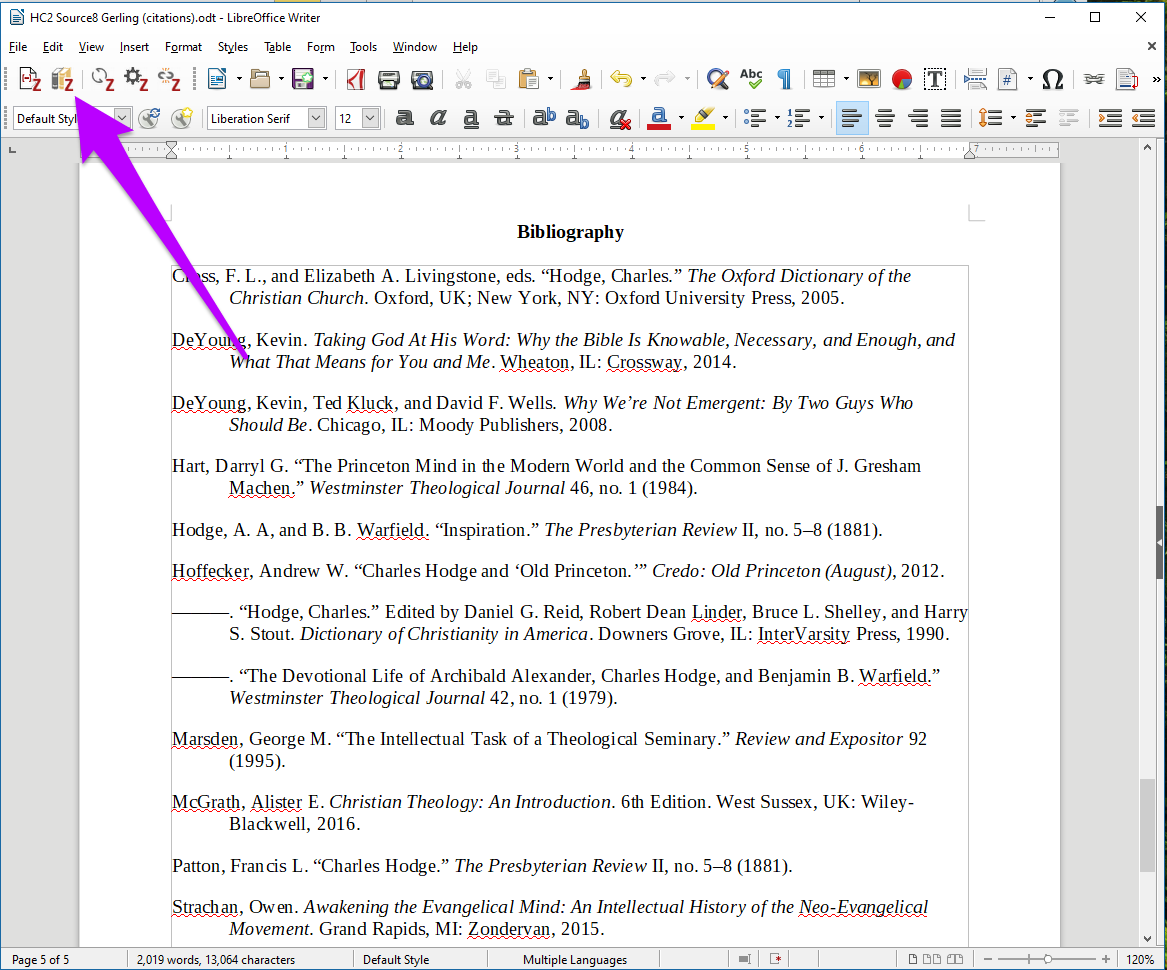
If you need a bibliography page, go to the end of your paper, put in a page break, type in your heading, and then click the Zotero Bibliography button. It will then insert the appropriate citations in the style you selected.
Formatting
All that's left to do is format your paper with the proper fonts, spacing, margins, etc. Then, proofread your paper, and you're ready to turn it in! You could certainly do these final steps in Libreoffice, but I usually export to Word, and clean up the document there, as Word is a little better at formatting, plus I have the Grammarly plugin in Word. If you this looks like it might work for you, or if you have questions, please ask, I would love to help you out!